
WinSCP, a graphical secure file transfer program, is already available on the Windows workstations in Unity labs. You can also download a free copy and install it on your own computer. Here’s how:
- To download WinSCP, go to the Eos Software Catalog.
- Double-click on the WinSCP.exe icon.
This will make the appropriate changes to your computer.
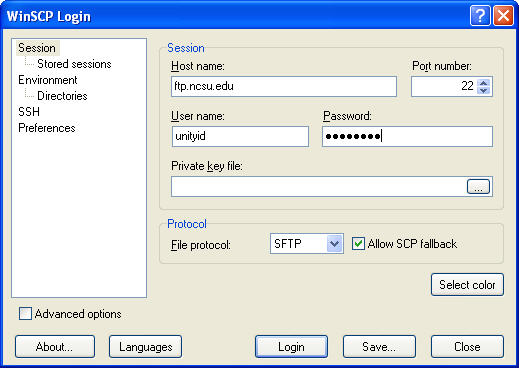
You may want to create a shortcut for the program and place it on your Desktop. - When you open the program, you should see the WinSCP Login window:
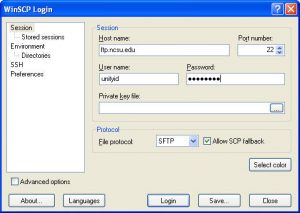
- For Host name, enter
ftp.ncsu.edu - For User name, enter your
Unity ID. - For Password, enter your
Unity Password. - In the drop-down menu for File protocol, select
SFTP. - Be sure that the
Allow SCP fallback checkbox is marked. - Optional: To make a future transfer to the same location without re-entering the Host name and user information, click on the Save button.
- Click on the Login button.
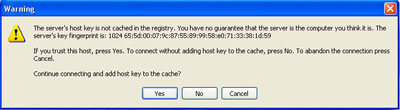
If a warning window appears, click the Yes button.
Now you can drag-and-drop files between your Unity file space and your computer.
If you need more help with file transfer, contact the NC State Help Desk.